
If you are reading this, chances are, you are well-acquainted with ChatGPT – OpenAI’s incredible language model that has the prowess to generate texts mimicking human-like quality, respond to queries, and even craft full-length essays. It’s an extraordinary tool, but, akin to all tech-oriented solutions, it may face issues from time to time. A typical glitch that users might bump into is the notorious ChatGPT internal server error.
This rather ambiguous error message can arise due to a couple of reasons, ranging from temporary server malfunctions to issues with your local device. To help you regain your productivity stride, we have put together a detailed guide that will help you understand and address this common predicament.
What Does ‘ChatGPT Internal Server Error’ Indicate?
An ‘internal server error’, as the name suggests, typically arises from a problem within the server that hosts the application or website—in this case, ChatGPT. This error message is a catch-all phrase used when the server cannot specify the exact problem, making it a tad tricky to troubleshoot.
This ChatGPT internal error can hamper your user experience, obstructing access to the AI’s functionalities or leading to inconsistent performance. This error can emerge from various factors. From a user-end perspective, it might include network issues, browser-related problems, or even outdated software on your device.
Server-end problems might include temporary server overloads – Chat GPT server overload – regular maintenance activities, or more severe server malfunctions.
Common Symptoms of ChatGPT Internal Server Error
The most evident symptom of a ChatGPT Internal Server Error is the error message itself, often displayed as “500 Internal Server Error”. However, it may also appear in other forms, such as “HTTP 500 Error”, “Internal Server Error”, or just an unhelpful “Error”.
In addition, you might notice erratic behavior on the ChatGPT website. It might load sluggishly, hang, or fail to load specific functionalities. In certain situations, the website might not open altogether. These issues might persist even after refreshing the page, switching browsers, or clearing your browser’s cache and cookies, indicative of a ChatGPT network error.
How to Diagnose the ChatGPT Internal Server Error?
Determining the root cause of the Chat GPT Internal Server Error is the initial step toward efficient troubleshooting. Here’s how you can start diagnosing the issue:
Begin by verifying if the error consistently appears across multiple devices and browsers. If the error persists, it might hint at a server-side issue, or in technical terms, an ‘OpenAI internal server error’. Conversely, if the error only appears on a specific device or browser, it’s likely a user-end issue.
Next, try accessing ChatGPT at varying times. Server glitches often resolve themselves within a few hours. If the error vanishes after a while, it was probably a temporary ‘Chat GPT server overload’.
Accurate diagnosis is pivotal in resolving the Chat GPT internal server error. It ensures you don’t expend unnecessary time and energy fixing an issue that doesn’t exist, directing you toward an effective solution instead.
Identifying the cause of the ChatGPT internal server error is the first step toward effective troubleshooting. Here’s how to start diagnosing the issue:
10 Methods to Fix the ChatGPT Internal Server Error
Having diagnosed the possible causes of the ChatGPT internal server error, it’s time to delve into methods to resolve it. Remember, the key to successful troubleshooting lies in patient, methodical testing. Here are some proven methods you can try:
Method 1: Refreshing the Page
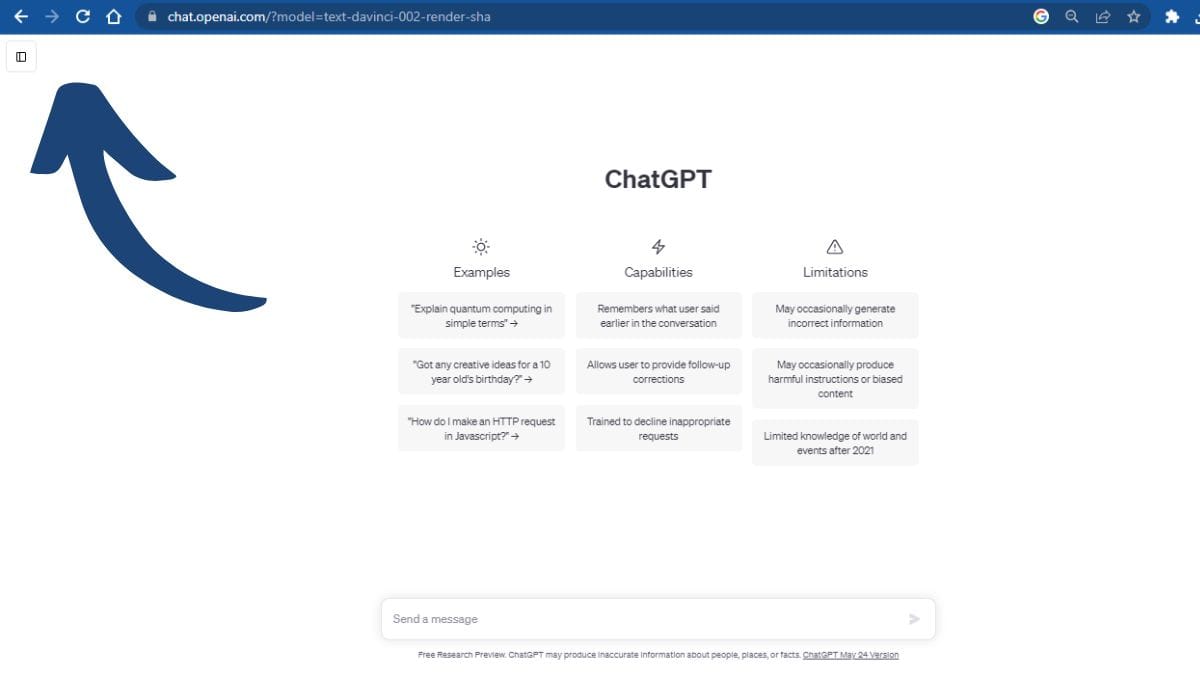
When you experience Chat GPT errors, your first step should be refreshing the page. It’s possible that a brief, temporary glitch could be causing the issue. By simply hitting the refresh button on your browser or pressing F5, you could instantly rectify the problem. This immediate action can get ChatGPT up and running smoothly again, bypassing minor hiccups that might have momentarily disrupted the service.
Method 2: Clearing Browser Cache and Cookies
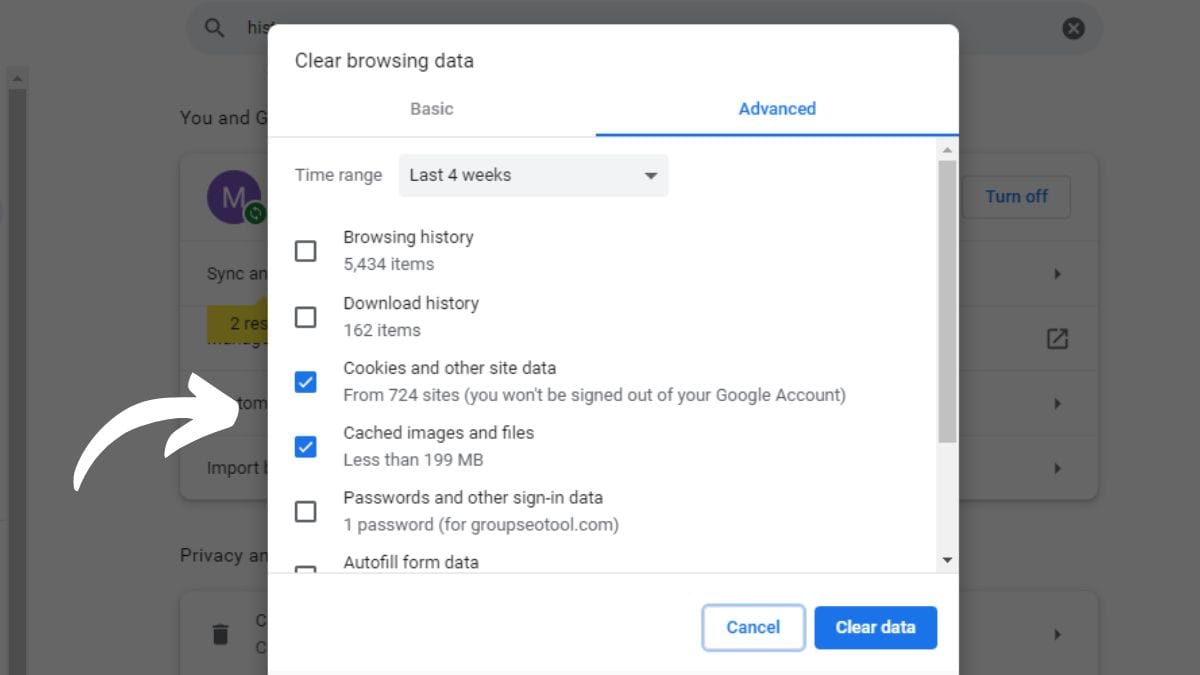
A bloated cache or out-of-date cookies can frequently trigger a ChatGPT server status issue. The solution is to clear your browser’s cache and cookies. Once completed, it’s vital to restart your browser and then attempt to access ChatGPT again. Keep in mind, this process might log you out of some sites, so be ready with all required login credentials to avoid any disruption in your browsing journey.
Method 3: Trying a Different Browser or Device
If the simple tactics of refreshing and clearing the cache don’t rectify the “OpenAI API 500 error”, consider shifting to a different browser or device. Sometimes, compatibility problems arise between browsers and certain websites or apps. Transitioning browsers or devices can help identify and potentially resolve these problems. If ChatGPT runs without a ChatGPT access denied error on another device or browser, the issue is likely unique to your original choice.
Method 4: Disabling Browser Extensions
While convenient, browser extensions can occasionally interfere with the functionality of websites and applications. To troubleshoot, disable all extensions, then reload ChatGPT to determine if an extension caused the ChatGPT error in body stream. If the error vanishes, you can reactivate the extensions one at a time, pinpointing which one was responsible for the issue.
Method 5: Checking Internet Connection
A dependable and steady internet connection is fundamental for the smooth operation of ChatGPT. If your connection is inconsistent, slow, or unstable, it may culminate in a ChatGPT error occurred. To address this, examine your connection speed, reset your router, or try a different network if available. A steady connection can frequently be the answer to a seamless ChatGPT experience.
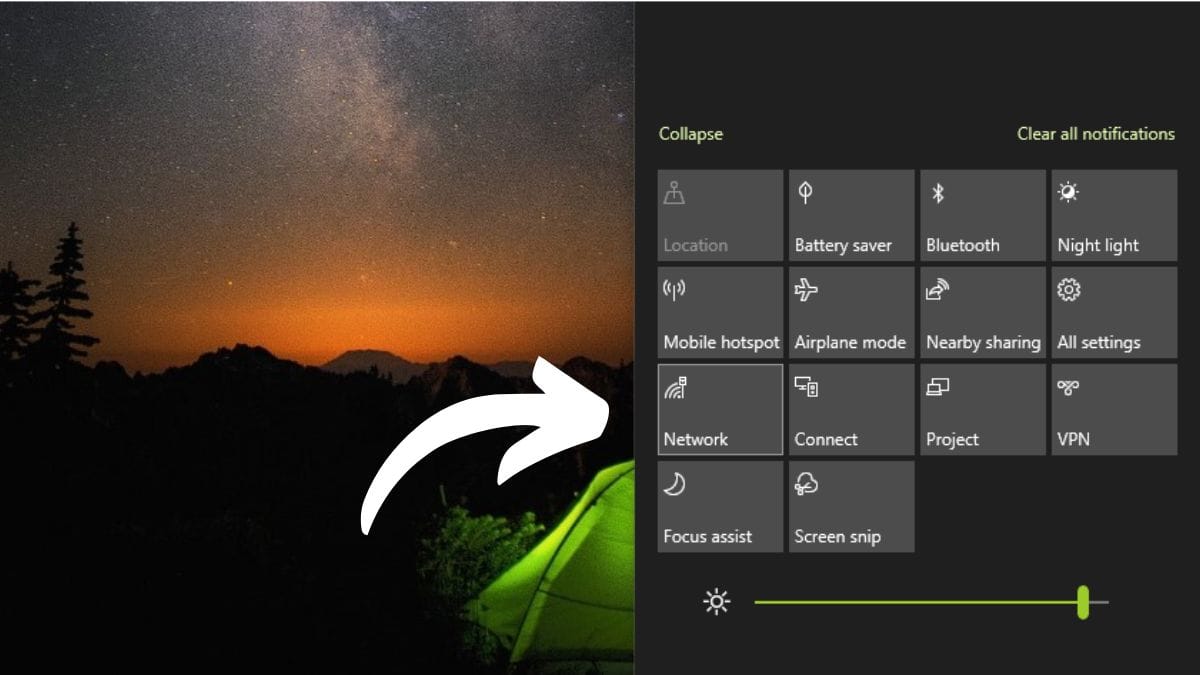
Read our step-by-step guide on how to fix the ChatGPT network error
Method 6: Updating the System or Device Software
Obsolete system or device software can give rise to compatibility problems with applications like ChatGPT. To counteract these issues, it’s crucial to regularly update your operating system and browser. If you’re using the ChatGPT app, always ensure you have the most recent version installed. Staying current can help fend off a multitude of potential Chat GPT authentication errors.
Method 7: Contacting ChatGPT Support
If the error obstinately persists despite your best efforts, it’s time to involve the experts. Contact ChatGPT support via the official website. Furnish a detailed description of the issue, including the measures you’ve already employed to rectify it. Their proficient technical team should be able to direct you towards a solution, assisting you to get back to using the service without further hitches.
Method 8: Waiting it Out – Server-end Issues
If the error is identified as a server-side issue, your best bet is to exercise patience. Server issues are typically resolved by the expert technical team behind ChatGPT. While waiting, it can be helpful to stay informed by checking for any announcements or updates from ChatGPT about the issue. Patience and awareness can be key during server-end issues.
Method 9: Using Incognito/Private Browsing Mode
In certain circumstances, leveraging your browser’s Incognito or Private Browsing Mode can help sidestep the ChatGPT error that occurred. These modes don’t utilize your stored cookies, allowing you to ascertain if they’re the source of the problem. Bear in mind, any modifications made in these modes (like logins or settings) won’t be saved, so use this method purely for troubleshooting purposes.
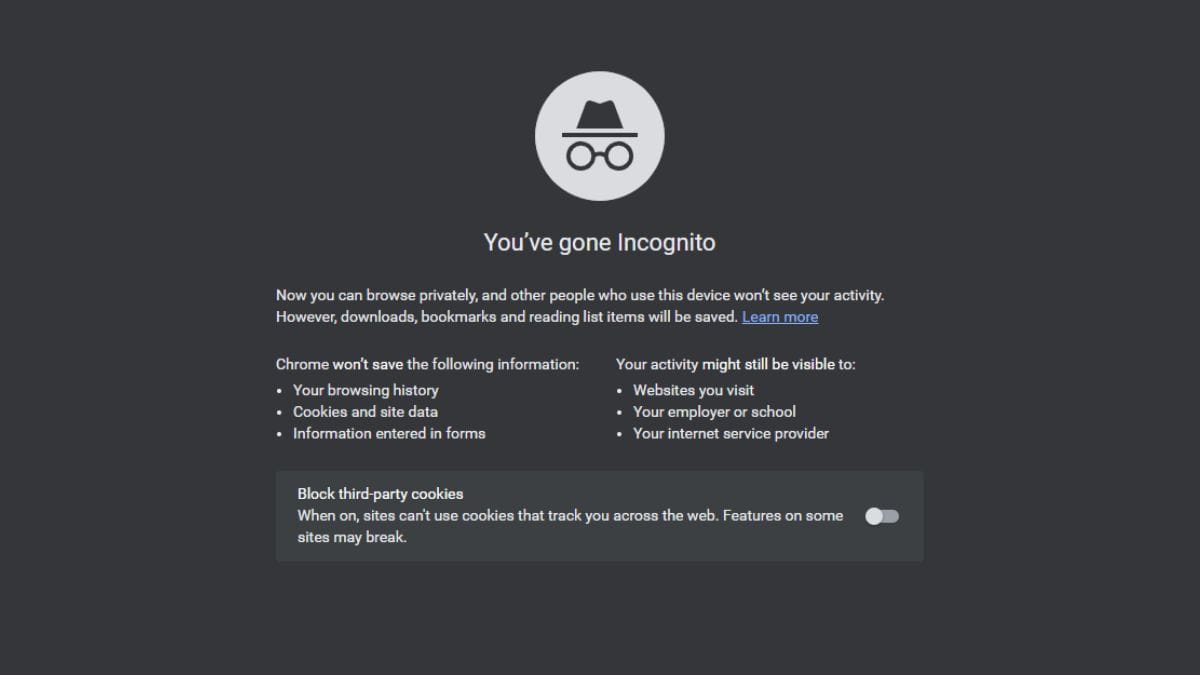
Method 10: Checking the ChatGPT Status Page for Updates
For server-end issues, regularly scrutinize the ChatGPT server status page for updates on server status and ongoing problems. It can provide valuable information about the nature of the issue and the estimated timeframe for resolution.
Preventive Measures to Avoid the ChatGPT Error Occurred
To prevent the ChatGPT error, you should maintain a stable and robust internet connection, as irregularities can cause disruptions. Regularly clearing your browser cache and cookies prevents build-up that could lead to errors. Keep your device’s system software and browsers current to prevent compatibility issues.
Occasionally, using your browser’s Incognito or Private Mode could help avoid issues. Keep an eye on the ChatGPT Server Status page for updates and known problems. Lastly, be prepared to contact ChatGPT support if you notice recurring problems.
Implementing these preventive measures could provide a smoother, more efficient ChatGPT experience, minimizing the likelihood of encountering the “Why Isn’t ChatGPT Working for Me” question.
Final Words
Navigating the maze of the ChatGPT internal server error can be a challenge, but remember, every problem has a solution. With patience, methodical troubleshooting, and a dash of tech-savviness, you’ll be back to explore the marvels of ChatGPT in no time. And who knows? You might even find the journey enlightening, transforming you from a casual user into a ChatGPT champion. After all, understanding our tools makes us masters of our craft.
Frequently Asked Questions
Why is ChatGPT not working?
It could be due to various reasons including a server-side issue, a problem with your internet connection, or issues with your browser or device.
What does the internal error mean on ChatGPT?
An internal error usually indicates a problem with the server hosting the ChatGPT application, but it can also stem from issues on the user end.
Can I fix the ChatGPT Internal Server Error by myself?
Yes, often the error can be fixed with simple troubleshooting steps like refreshing the page, clearing cache, or switching browsers.
What if the ChatGPT Internal Server Error persists after trying all methods?
If the error persists, you should contact ChatGPT support for further assistance.
How long does it take for server-end issues to resolve?
The duration varies based on the nature of the issue. Check the ChatGPT server status page for updates on server issues.
